
Why PDF Pages Need to Be Converted to JPG
PDF (Portable Document Format) is the premier format for fixed-layout document interchange, but it suffers from severe integration roadblocks across modern consumer workflows:
- Presentation Software: PowerPoint, Google Slides, and Apple Keynote cannot natively embed or scroll multi-page PDFs as slide backgrounds.
- Social Media Feeds: Platforms like Instagram, Pinterest, LinkedIn feed carousels, and X (Twitter) reject PDF files for standard image posts.
- Web Pages & Email: Web browsers cannot inline display PDF pages as responsive photographic elements without heavy iframe embeds.
Converting PDF pages to JPEG raster images transforms static document pages into versatile visual media that can be cropped, resized, and embedded anywhere.
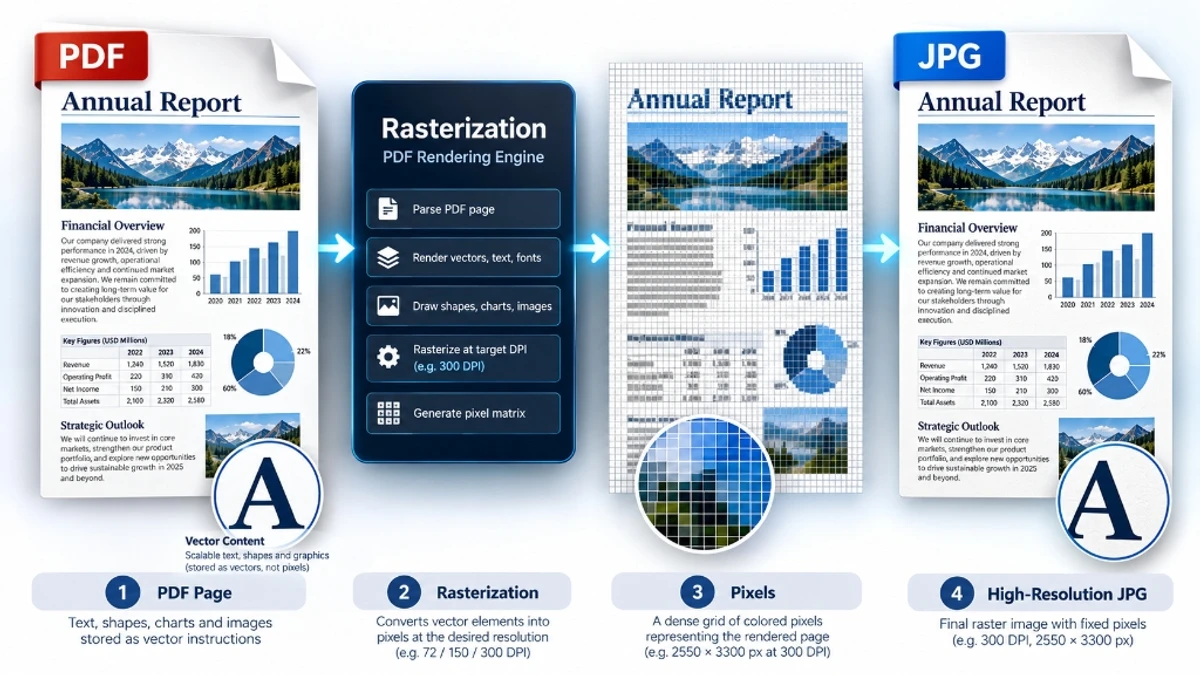
Understanding DPI: 72 DPI (Web) vs. 150 DPI (Screens) vs. 300 DPI (Print)
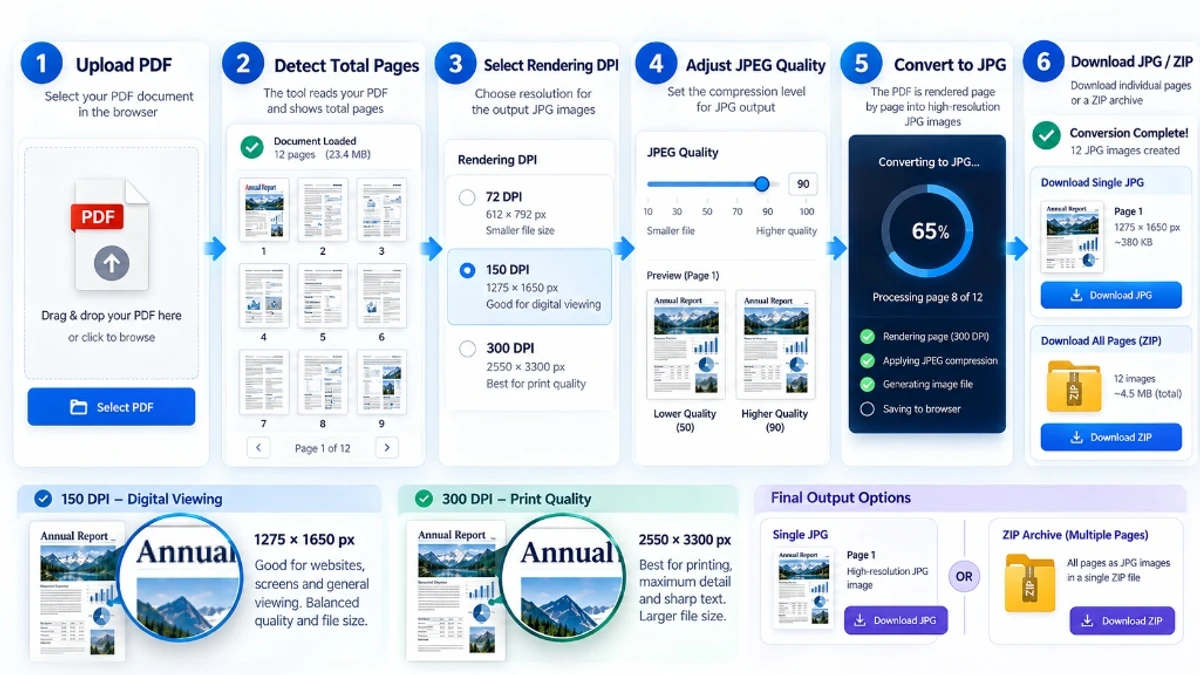
DPI (Dots Per Inch) determines how many pixels the rasterization engine creates for every physical inch of the PDF page:
| DPI Setting | Resolution (US Letter 8.5×11") | File Size (Per Page) | Recommended Use Case |
|---|---|---|---|
| 72 DPI | 612 × 792 pixels | ~120 KB | Email inline previews, low-bandwidth website thumbnails |
| 150 DPI | 1275 × 1650 pixels | ~380 KB | Slide presentations, tablet reading, high-res web showcases |
| 300 DPI | 2550 × 3300 pixels | ~1.4 MB | High-end commercial printing, legal records, archival scans |
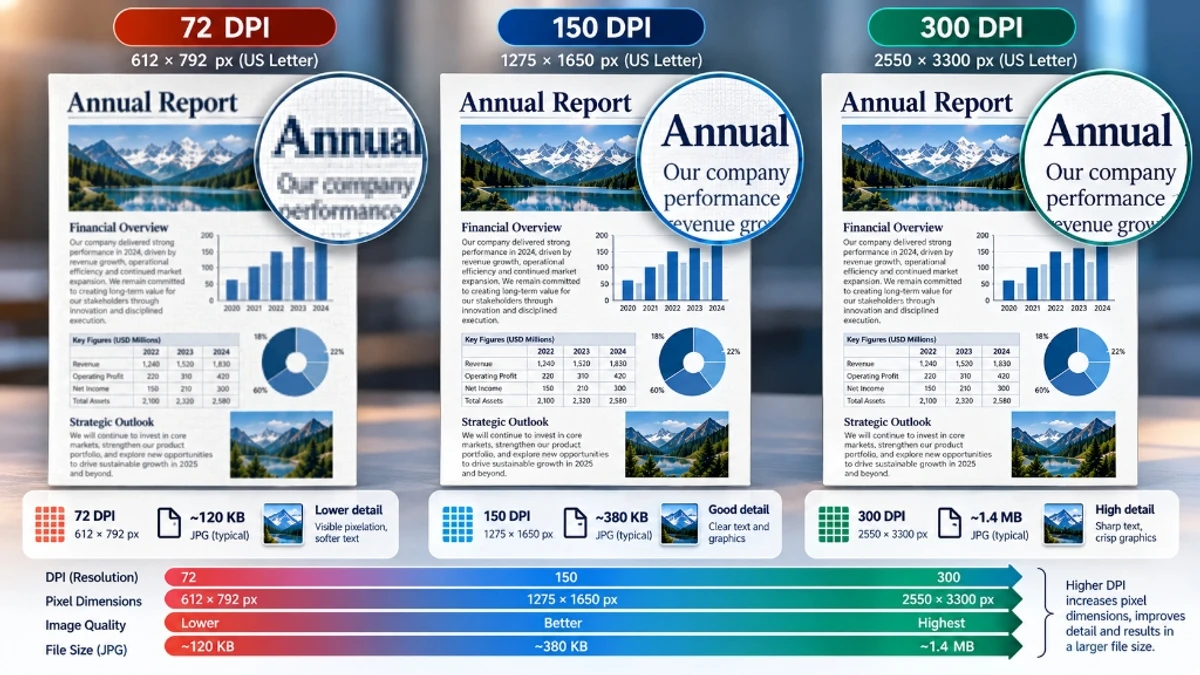
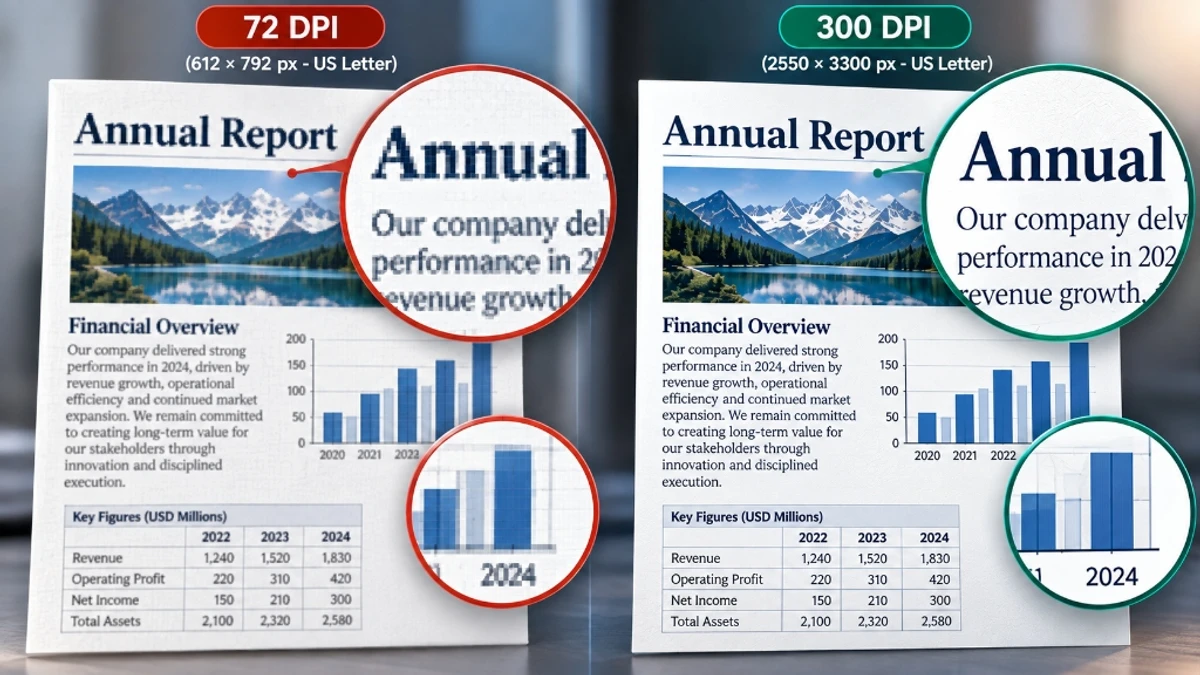
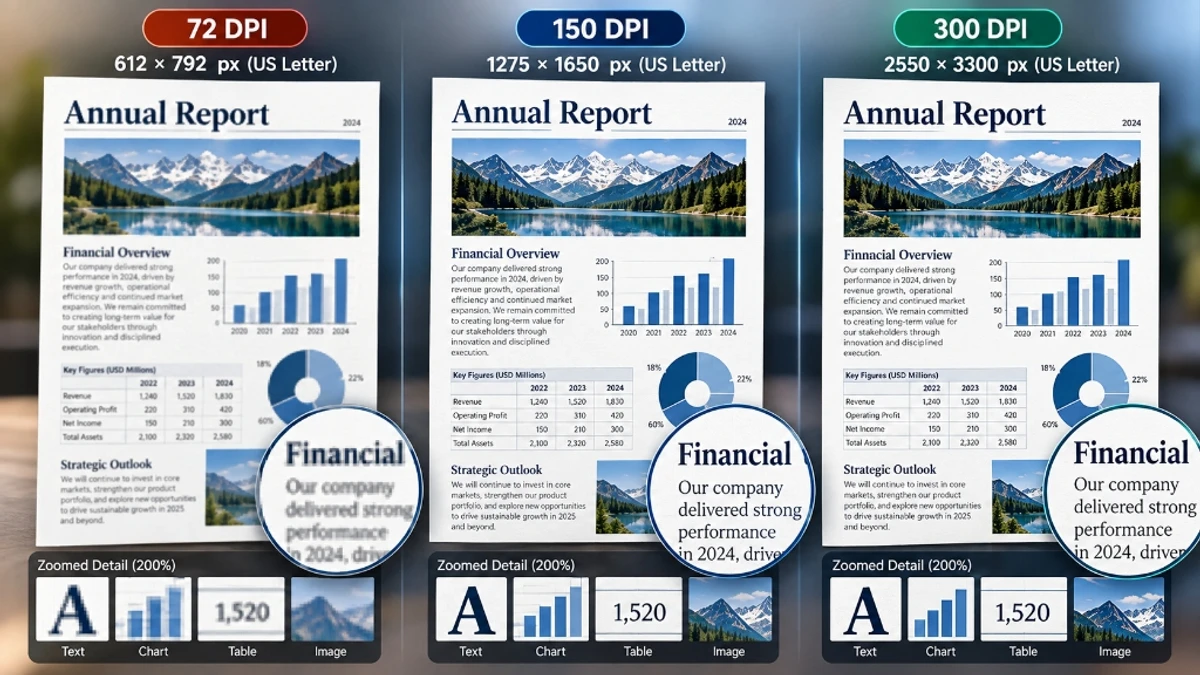
If your PDF contains fine 9pt or 10pt typography, financial tables, or technical schematics, always avoid 72 DPI. At 150 DPI or 300 DPI, character curves receive ample pixel density, eliminating fuzzy fringes.
Batch Page Extraction: Single Images vs. ZIP Archives
Handling documents with dozens of pages requires intelligent file packaging:
- Single Page PDFs: Downloading a single JPG immediately is seamless and requires zero extra clicks.
- Multi-page PDFs: Exporting 30 separate browser downloads triggers popup blockers and floods your Downloads folder. ToolDolfen PDF to JPG solves this by bundling all sequentially numbered pages (page-001.jpg, page-002.jpg) into a clean, uncompressed ZIP archive.
Step-by-Step: Converting PDF to JPG on ToolDolfen
- Navigate to ToolDolfen PDF to JPG.
- Upload your PDF document. The tool instantly parses the total page count.
- Configure your desired Rendering DPI (choose 150 DPI for optimal digital screen crispness or 300 DPI for print fidelity).
- Adjust the JPEG Quality Slider (default 85% provides near-lossless clarity with compact file size).
- Click Convert to JPG.
- Download the resulting high-resolution JPG or the complete ZIP package.
When to Choose PNG Over JPG for PDF Page Extraction
While JPEG is the universal standard for photographic pages and general documents, consider extracting as PNG using PDF to PNG under specific conditions:
- Transparent Backgrounds: If your original PDF vector design contains transparency that must be preserved for web design, choose PNG.
- High-Contrast Line Art & Technical Blueprints: Fine architectural schematics and barcode graphics maintain crisper edges in lossless PNG format.
If you only need the raw written content of the document rather than images of the pages, use our dedicated Extract Text from PDF tool.
Recommended Companion Guides
Explore complementary tutorials and utilities from this topic cluster to enhance your digital workflow: