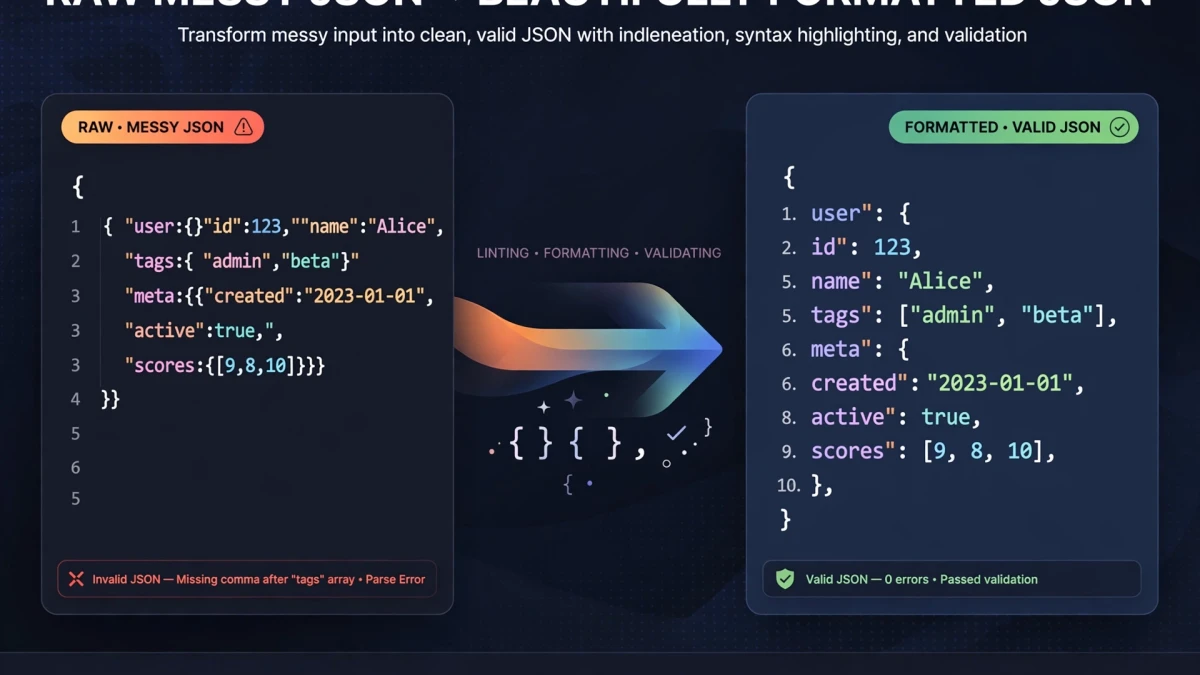
JSON Syntax Rules and Common Errors
JSON (JavaScript Object Notation) is the universal data format for web APIs, configuration files, and data storage. Its syntax is strict — even one misplaced character makes the entire document invalid.
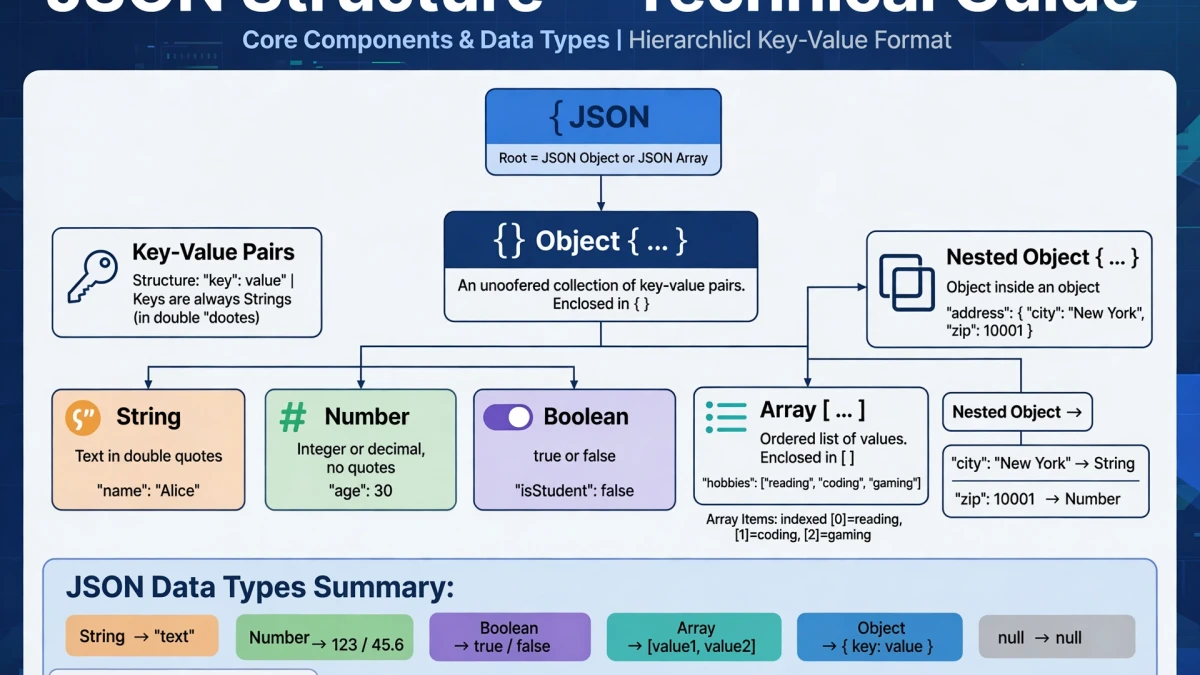
Core JSON syntax rules:
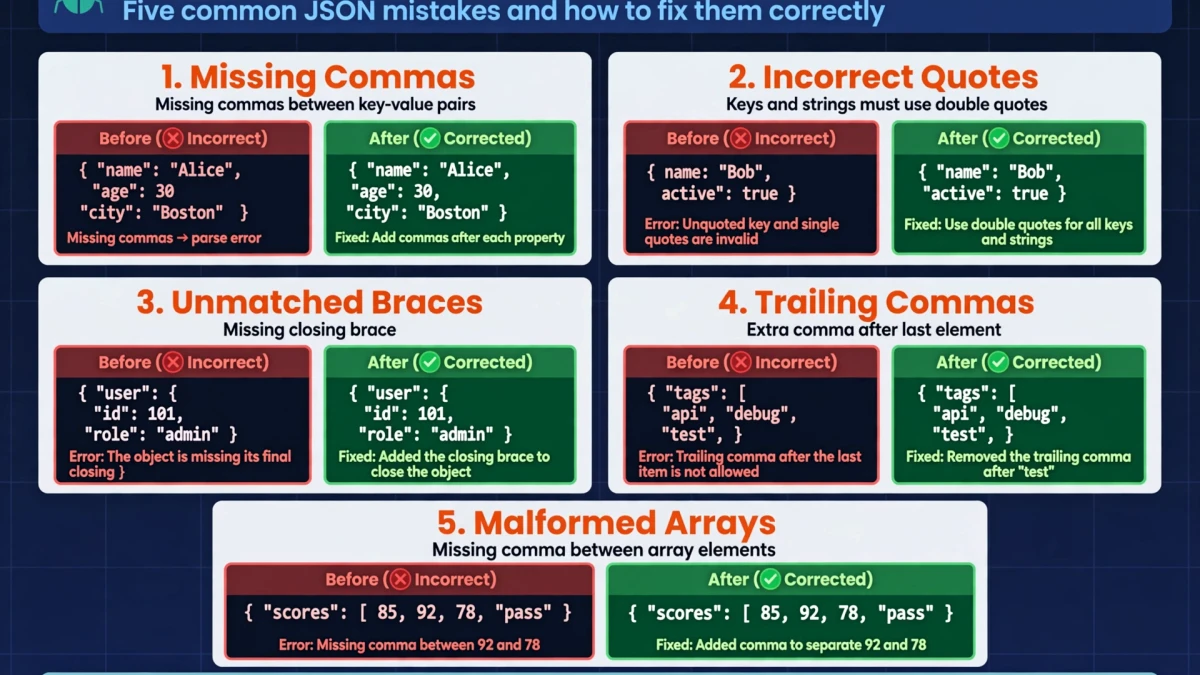
- Strings must use double quotes —
"name"is valid,'name'is not - Object keys must be quoted strings —
{"key": "value"}valid,{key: "value"}invalid - No trailing commas —
{"a":1, "b":2}valid,{"a":1, "b":2,}invalid - No comments — JSON has no comment syntax
- Only specific value types — string, number, object, array, true, false, null
Most common errors:
- Trailing comma after the last key-value pair
- Single-quoted strings instead of double-quoted
- Unescaped special characters in strings (newlines must be
\n, backslashes must be\\) - NaN, Infinity, or undefined values (these are JavaScript-only, not valid JSON)
Formatting vs Minifying: When to Use Each
Formatted JSON (also called "pretty-printed") uses consistent indentation and line breaks to make the structure human-readable. Use formatted JSON for:
- Development and debugging
- Configuration files that humans edit
- Documentation and API documentation examples
Minified JSON removes all whitespace characters, reducing file size. Use minified JSON for:
- API responses (reduces bandwidth)
- Production configuration files embedded in deployments
- Any JSON transmitted over a network where file size matters
A typical API response formatted might be 4,200 bytes; minified it becomes 2,800 bytes — a 33% reduction.
Step-by-Step: Format and Validate JSON on ToolDolfen
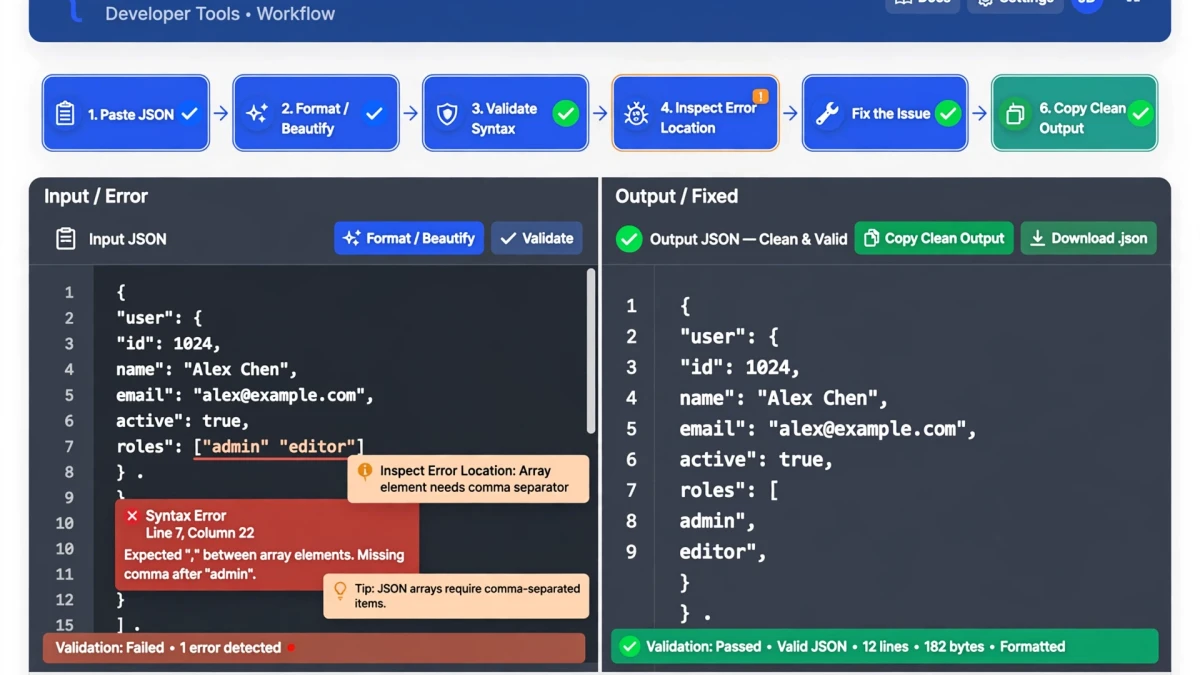
- Open the ToolDolfen JSON Formatter.
- Paste your JSON data — minified, broken, or any format.
- Click Format & Validate.
- Results:
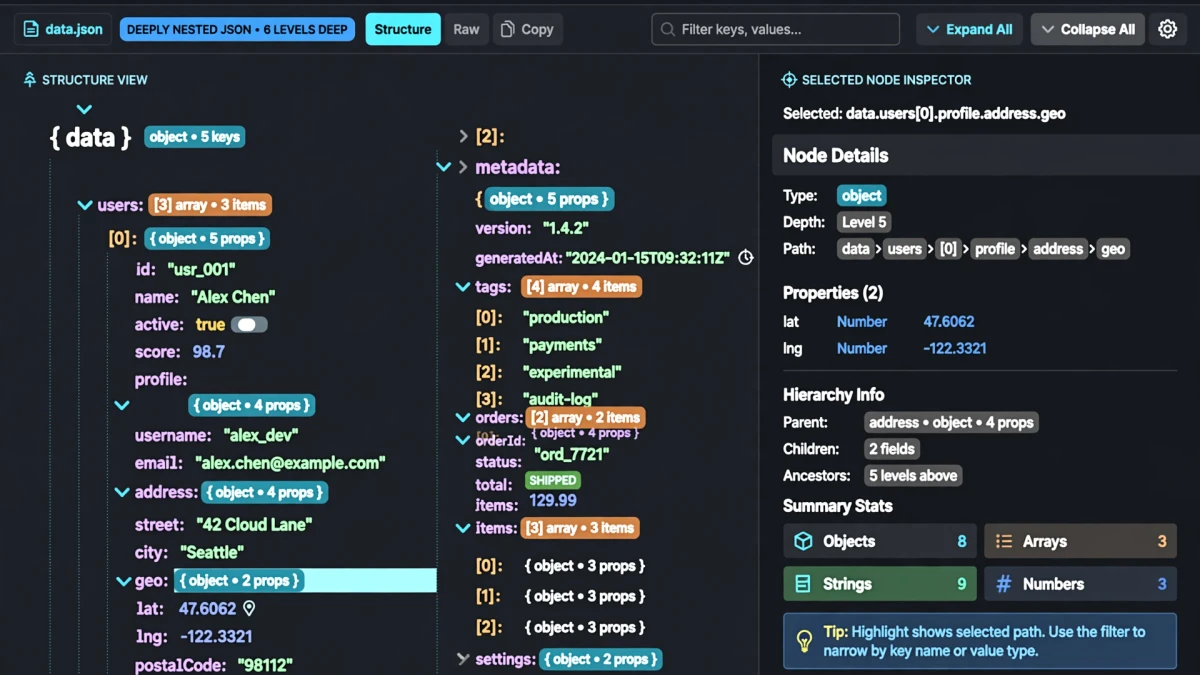
- Valid JSON: Displays formatted output with syntax highlighting, collapsible sections, and structure visualization - Invalid JSON: Highlights the exact error location with a descriptive error message (e.g., "Unexpected token ',' at line 7, column 23")
- Copy the formatted output or download it as a .json file.
Debugging Common JSON Syntax Errors
Error: "Unexpected token ," Cause: Trailing comma. Remove the last comma before the closing bracket.
// ❌ Invalid
{"name": "Alex", "age": 30,}

// ✅ Valid
{"name": "Alex", "age": 30}
Error: "Unexpected token '" (single quote) Cause: Using single quotes for strings.
// ❌ Invalid
{'name': 'Alex'}

// ✅ Valid
{"name": "Alex"}
Error: "Unexpected non-whitespace character after JSON" Cause: Two JSON objects concatenated without an enclosing array.
// ❌ Invalid
{"id": 1} {"id": 2}

// ✅ Valid
[{"id": 1}, {"id": 2}]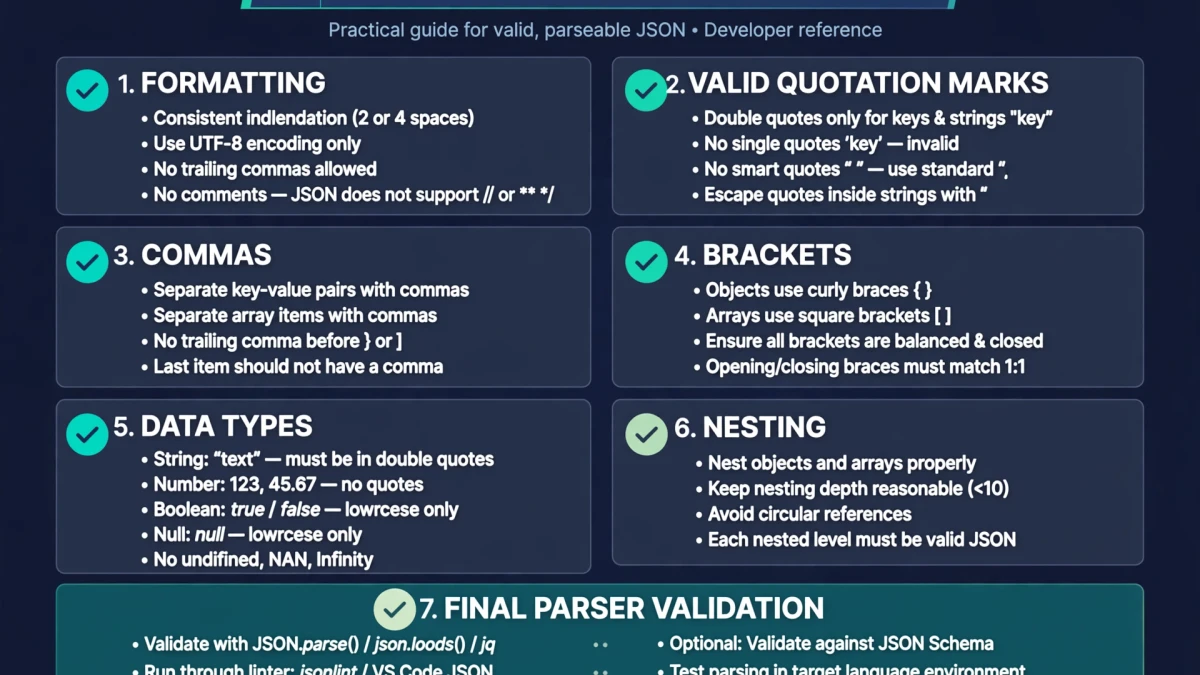
Recommended Companion Guides
Explore complementary tutorials and utilities from this topic cluster to enhance your digital workflow: