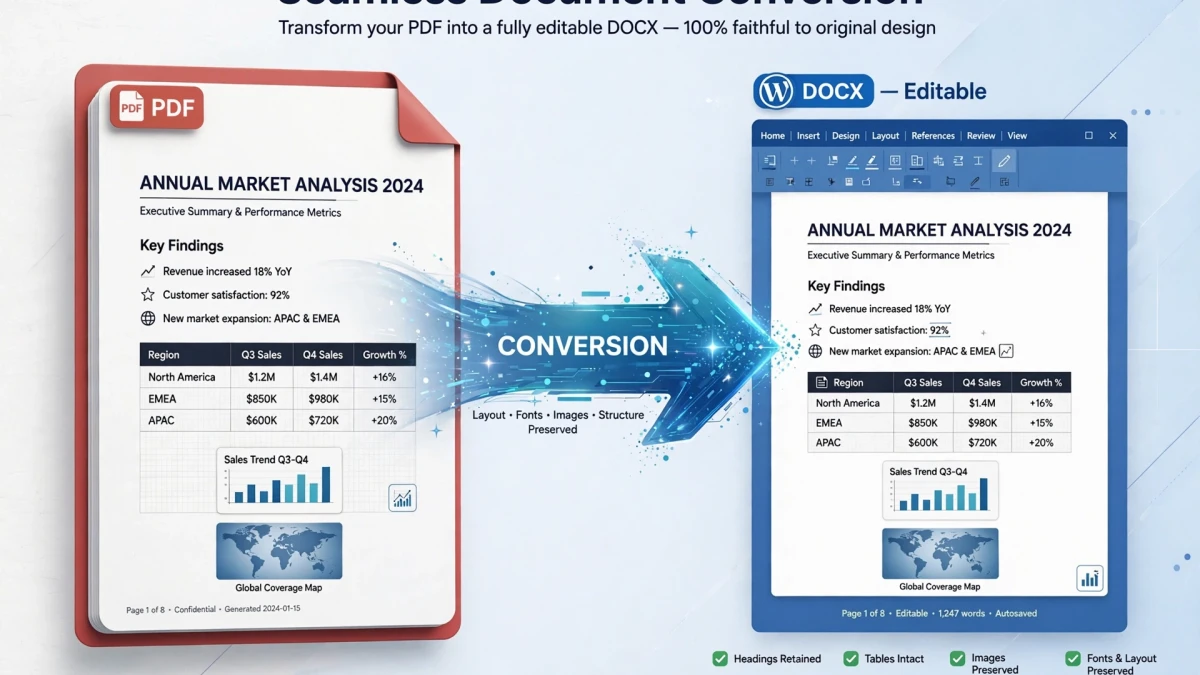
What Gets Preserved in PDF to Word Conversion

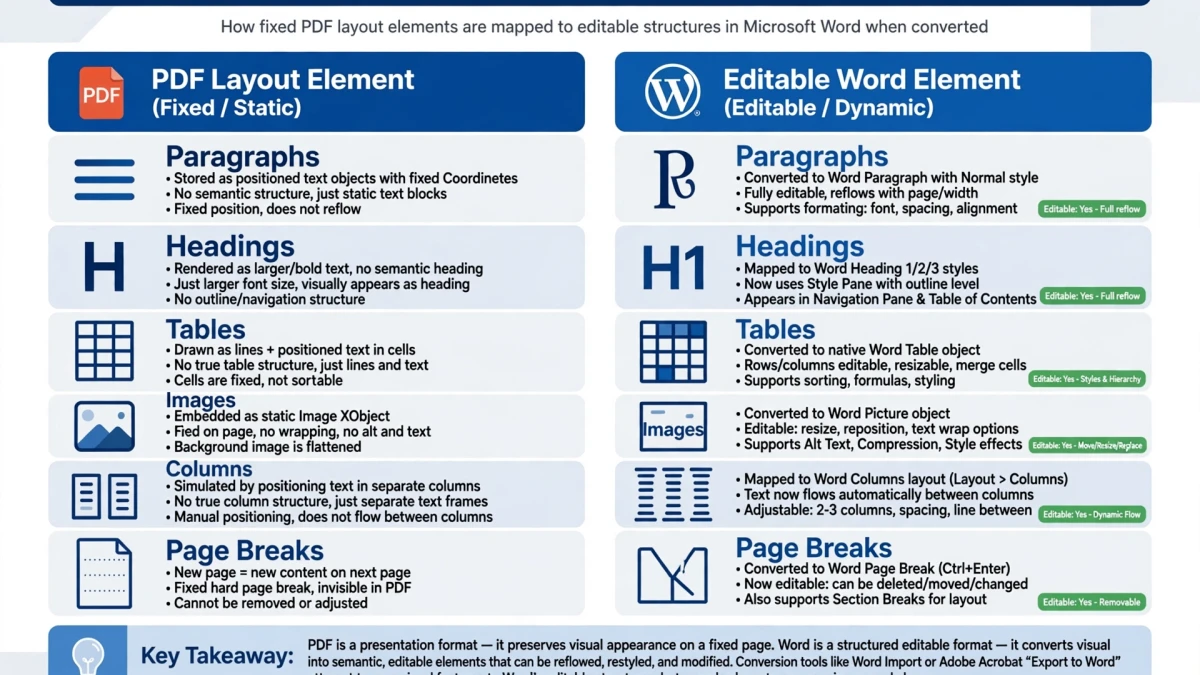
PDF to Word conversion attempts to reconstruct a fully editable document from the rendered PDF:
| Element | Preservation Likelihood |
|---|---|
| Paragraph text | ✅ Excellent — text is re-extracted from PDF text objects |
| Font face and size | ✅ Good — common system fonts recreated; custom fonts may substitute |
| Bold and italic | ✅ Good — inferred from PDF font variants |
| Bullet lists | ✅ Good for standard bullets; manual symbols may vary |
| Simple tables | ✅ Good — rows and columns reconstructed |
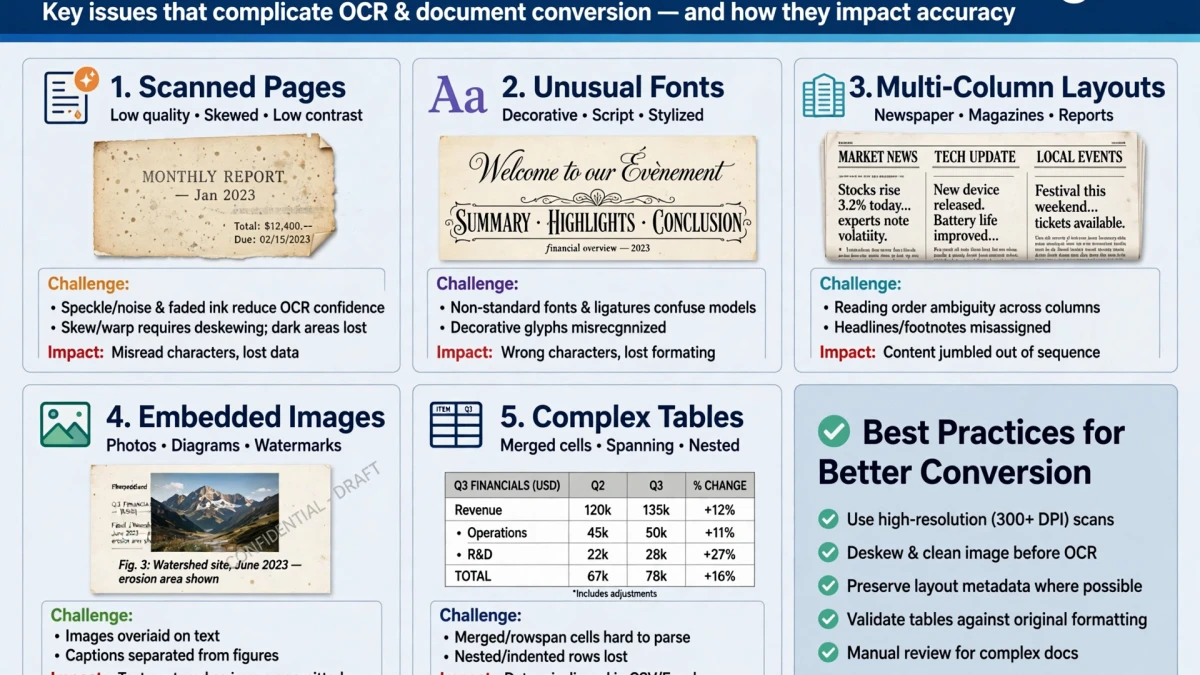
| Complex tables (merged cells) | ⚠️ Moderate — may need manual correction |
| Images | ✅ Preserved as embedded images |
| Headers and footers | ✅ Good for standard headers/footers |
| Multi-column layouts | ⚠️ Moderate — complex columns may merge |
| Custom fonts | ⚠️ Substituted if font not installed |
| Mathematical formulas | ❌ Poor — often converted to images |
Challenges with Complex Multi-Column Layouts

PDFs from InDesign, Quark, or complex newsletters with multi-column text flows are the most difficult to convert accurately. The PDF format stores text by absolute position on the page, not in reading order. The converter must infer the intended reading sequence, which fails for:
- Text boxes overlapping in complex ways
- Text flowing around images (runaround)
- Three or more column layouts
- Sidebars and callout boxes
Best strategy for complex documents: Extract the text you need using the Extract Text from PDF tool for content-only extraction, then manually reconstruct the layout in Word.
Step-by-Step: PDF to Word on ToolDolfen
- Open the ToolDolfen PDF to Word converter.
- Upload your PDF (up to 100MB).
- Click Convert to Word — client-side browser processing reconstructs the document structure directly on your device.
- Download the editable .doc file.
- Open in Microsoft Word or Google Docs.
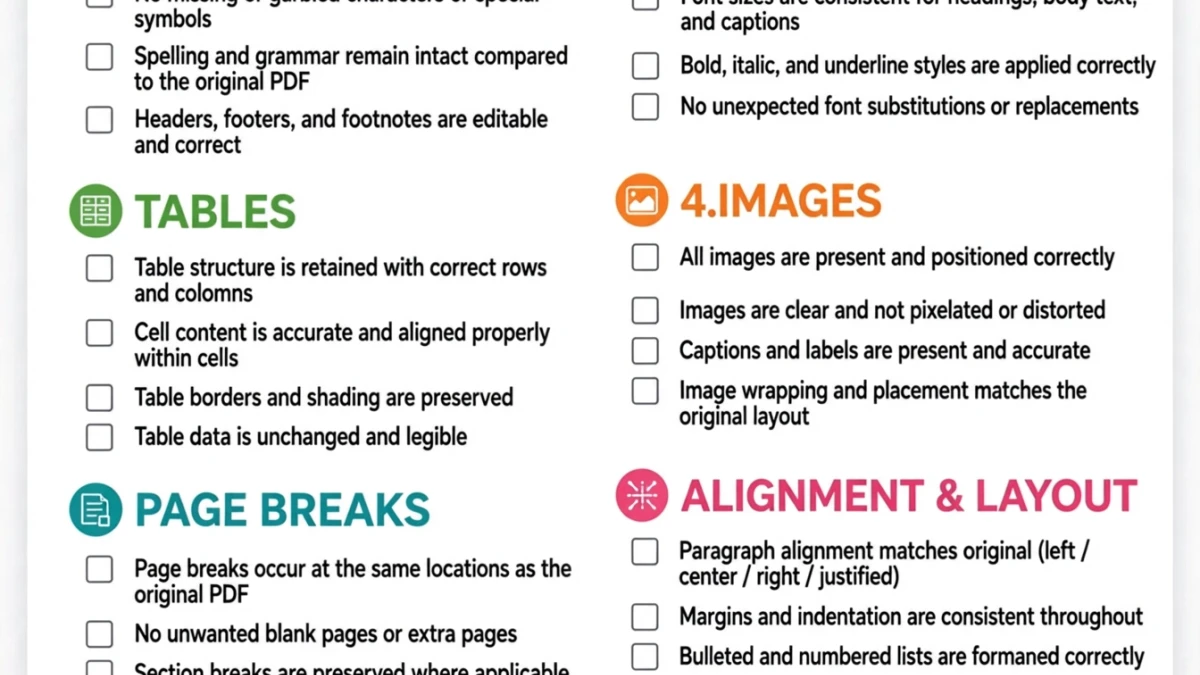
- Review the document, correct any layout issues, and save.
Tips for best results:
- Simple, single-column text documents convert near-perfectly
- For scanned PDFs: the tool automatically applies OCR before Word conversion
- If the original document creator used a word processor (Word, Google Docs), the conversion back should be very accurate
Recommended Companion Guides
Explore complementary tutorials and utilities from this topic cluster to enhance your digital workflow:
PDF Metadata Security: How to Sanitize Documents Before SharingPractical step-by-step tutorial with verified standards and in-browser workflows.How to Extract High-Resolution Images from PDF Documents OnlinePractical step-by-step tutorial with verified standards and in-browser workflows.How to Convert Multiple JPG Images into One PDF DocumentPractical step-by-step tutorial with verified standards and in-browser workflows.Converting Nested JSON to Flat CSV: Handling Complex Data StructuresComplementary cross-format workflow connecting related data and media tools.