How to Extract Plaintext from PDF Documents: Selectable vs. Scanned PDFs

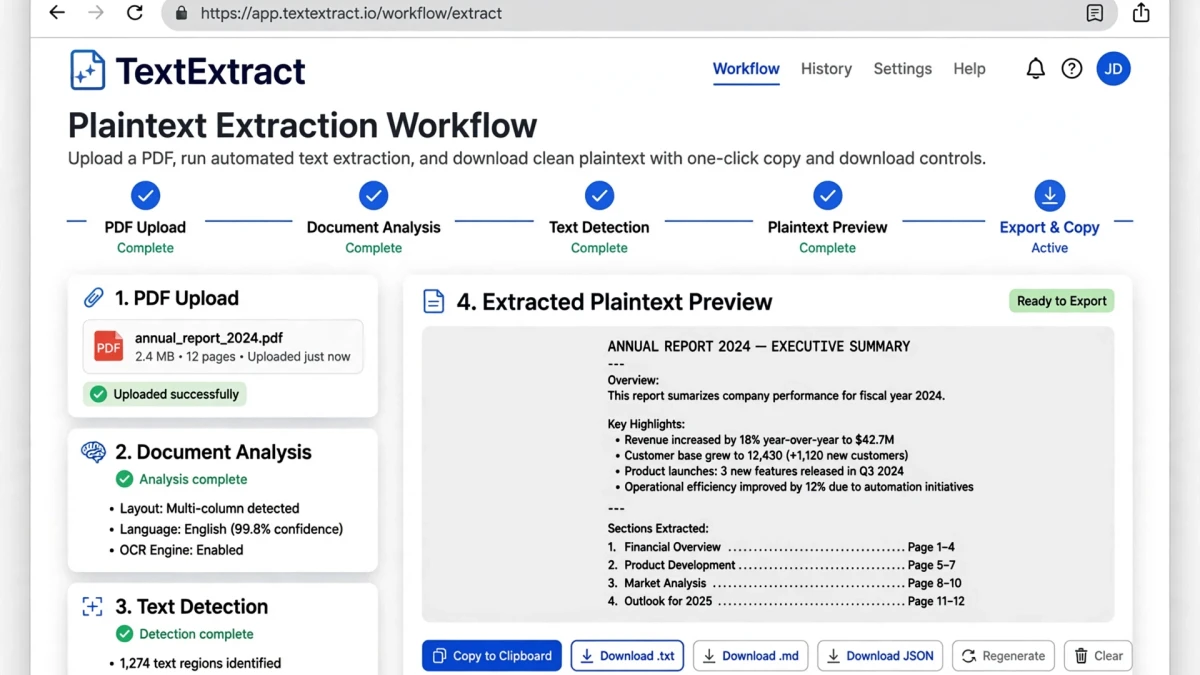
PDF text extraction works instantly for PDFs with selectable text (created in Word, InDesign, etc.). Scanned PDFs are images — they require OCR technology to recognize and convert characters.

PDF document with selectable text being extracted to plaintext document cleanly

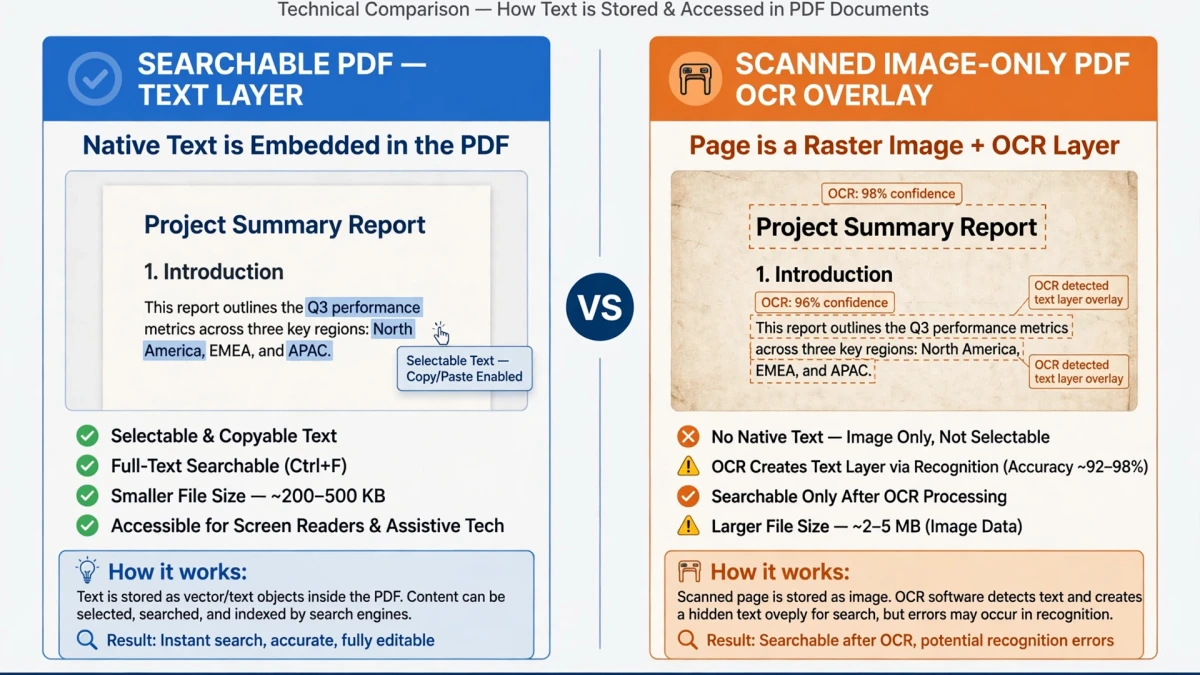
Selectable Text PDFs vs. Scanned Image PDFs
Font encoding and ToUnicode CMap tables mapping internal glyph IDs to UTF-8 characters

PDF internal text stream syntax showing BT, Tf, Td, Tj, and ET operators

Understanding which type of PDF you have determines how you extract text:

Selectable text PDFs:

  • Created directly from applications: Microsoft Word, Google Docs, Adobe InDesign, PowerPoint
  • Characters are stored as Unicode text objects in the PDF file structure
  • You can select and copy text directly in any PDF viewer
  • Text extraction tools work instantly without any image processing
  • Example: A contract created in Word and exported as PDF

Scanned image PDFs:

  • Created by scanning physical paper documents
  • The PDF contains page images — photographs of the document
  • No text objects — the text exists only as pixels in the image
  • You cannot select or copy text in a standard PDF viewer
  • Requires OCR to recognize and convert pixel characters to editable text
  • Example: A signed paper contract photographed or scanned

How to identify which type you have: Try selecting text in your PDF viewer. If you can highlight individual words, it's a selectable PDF. If dragging selects the entire page as an image, it's a scanned PDF.


Step-by-Step: Extract Text from PDF on ToolDolfen

Formatted PDF document page versus clean machine-readable plaintext extraction comparison

ToolDolfen in-browser PDF plaintext extractor client-side workflow pipeline

Preserving natural paragraph reflow and word spacing from disjointed PDF coordinates

  1. Open the ToolDolfen Extract Text from PDF tool.
  2. Upload your PDF.
  3. The tool automatically detects whether the PDF has selectable text:

- Selectable PDF: Text is extracted immediately with high accuracy - Scanned PDF: OCR is applied automatically to recognize characters

  1. Copy the extracted text or download as a .txt file.

Formatting note: Extracted text is plain text only. Tables are converted to tab-separated rows. Headers and paragraph spacing are approximated. For preserving layout, use a Word conversion tool instead.

Recommended Companion Guides

Explore complementary tutorials and utilities from this topic cluster to enhance your digital workflow:

How to Convert PDF to Editable Word (DOCX): Accuracy and Format PreservationPractical step-by-step tutorial with verified standards and in-browser workflows.PDF Metadata Security: How to Sanitize Documents Before SharingPractical step-by-step tutorial with verified standards and in-browser workflows.How to Extract High-Resolution Images from PDF Documents OnlinePractical step-by-step tutorial with verified standards and in-browser workflows.Converting CSV to JSON: Type Parsing, Nested Objects, and Header HandlingComplementary cross-format workflow connecting related data and media tools.
Recommended Utility: PDF Text ExtractorExecute this workflow live in your browser with zero server uploads and 100% client-side privacy.
Extract PDF Text →
Launch Tool →

Frequently Asked Questions

Find quick, verified answers to common questions regarding this workflow.

Why can't I copy and paste text from my PDF?

If text is not selectable in your PDF, the document is likely a scanned PDF (a collection of page images without embedded text). You need OCR to extract text from scanned PDFs. For text-based PDFs, copy-paste should work directly.

Does PDF text extraction preserve formatting?

Plain text extraction removes formatting (fonts, colors, tables). The output is unformatted text. To preserve document formatting, consider converting to a Word-compatible format instead of extracting plain text.

Bilal Ahmad