
How OCR Technology Works

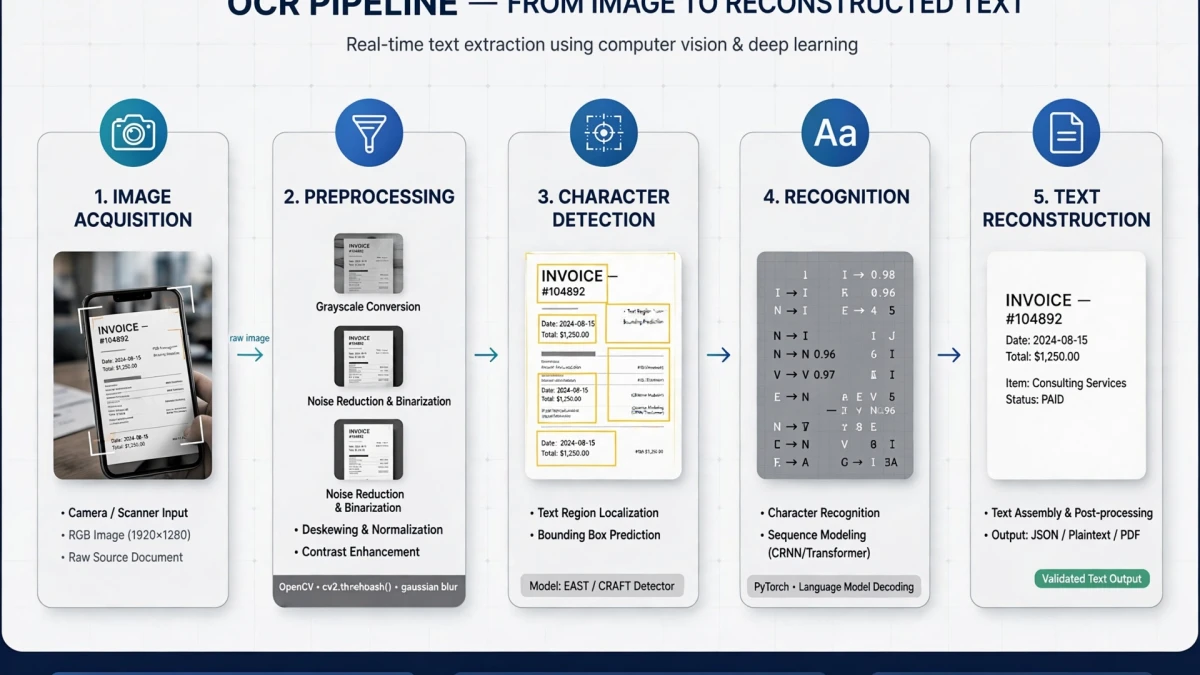
Optical Character Recognition uses computer vision to identify text characters in images. The modern OCR pipeline:
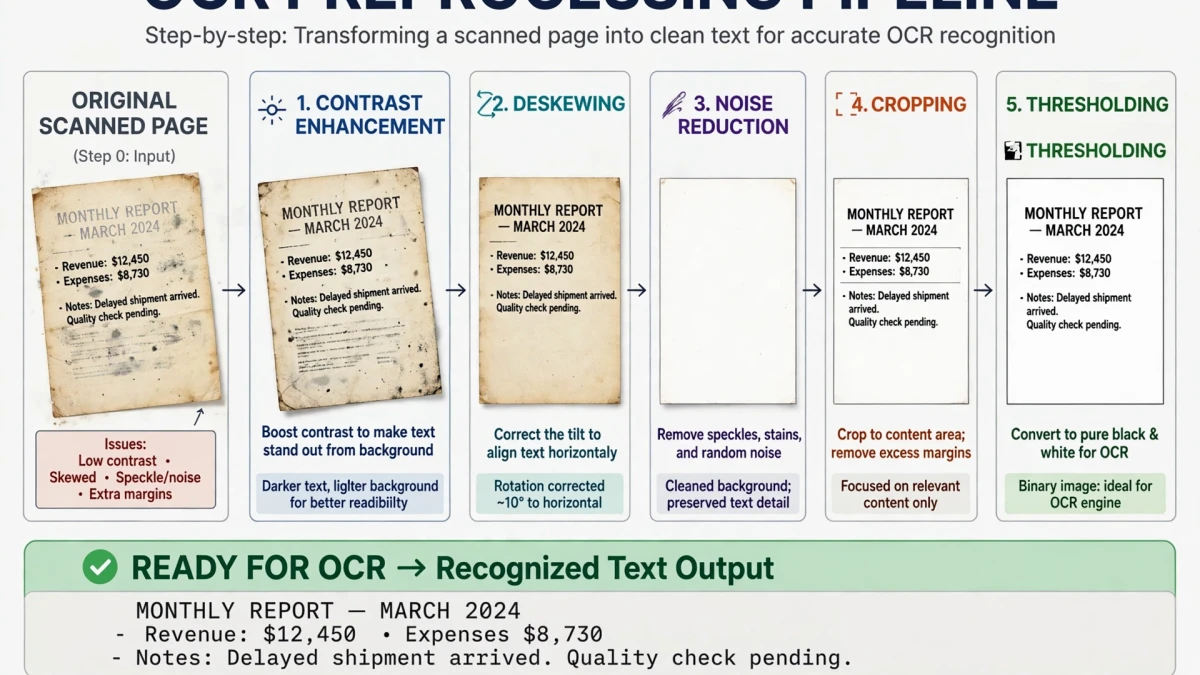
1. Image preprocessing Before character recognition, the image is cleaned up:
- Grayscale conversion (removes color noise)
- Binarization (converts to black and white)
- Deskewing (straightens tilted documents)
- Noise reduction (removes scanner artifacts and speckles)
- Line detection (identifies text rows)
2. Character segmentation The preprocessed image is divided into individual character regions. For Latin scripts, this involves identifying word boundaries, then individual character boxes.
3. Feature extraction Each character's features are extracted: stroke width, curves, intersections, aspect ratio, pixel density patterns.
4. Pattern matching Extracted features are compared against trained character models. Traditional OCR used template matching; modern OCR uses deep learning (convolutional neural networks) that recognize characters as holistic patterns, handling font variations and degradation robustly.
5. Contextual post-processing A language model checks the recognized characters against a dictionary and grammar rules, correcting "1earn" to "learn" and "rn" misread as "m" in context.
What Affects OCR Accuracy
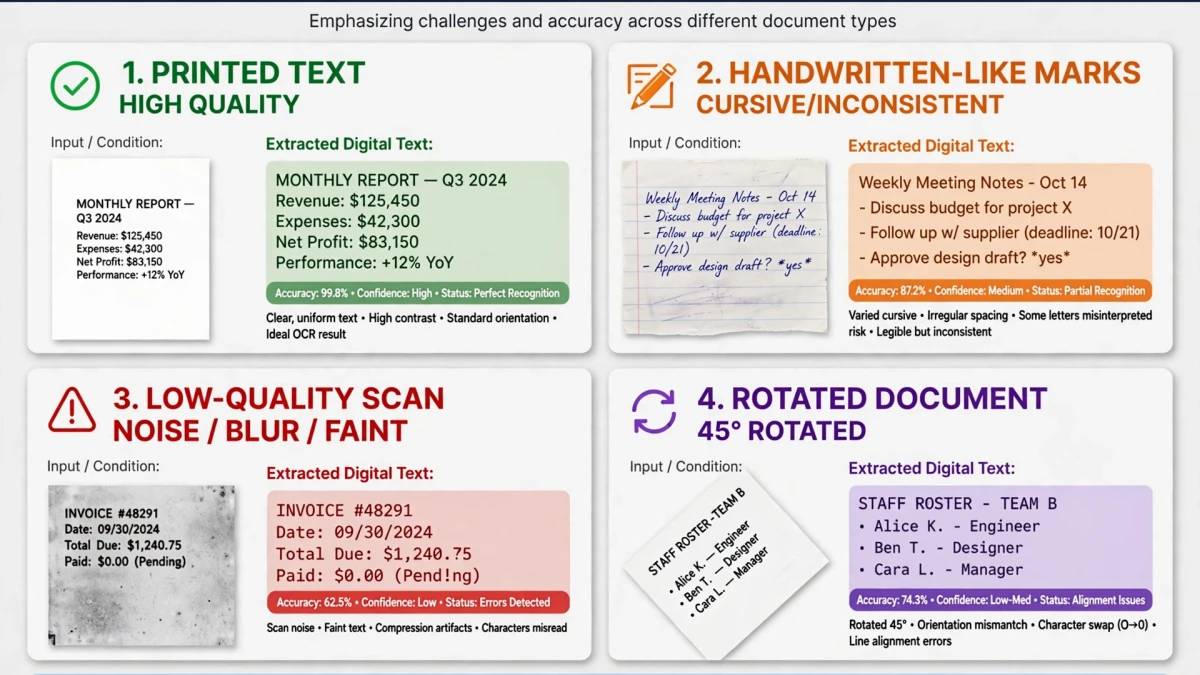
| Factor | Impact on Accuracy |
|---|---|
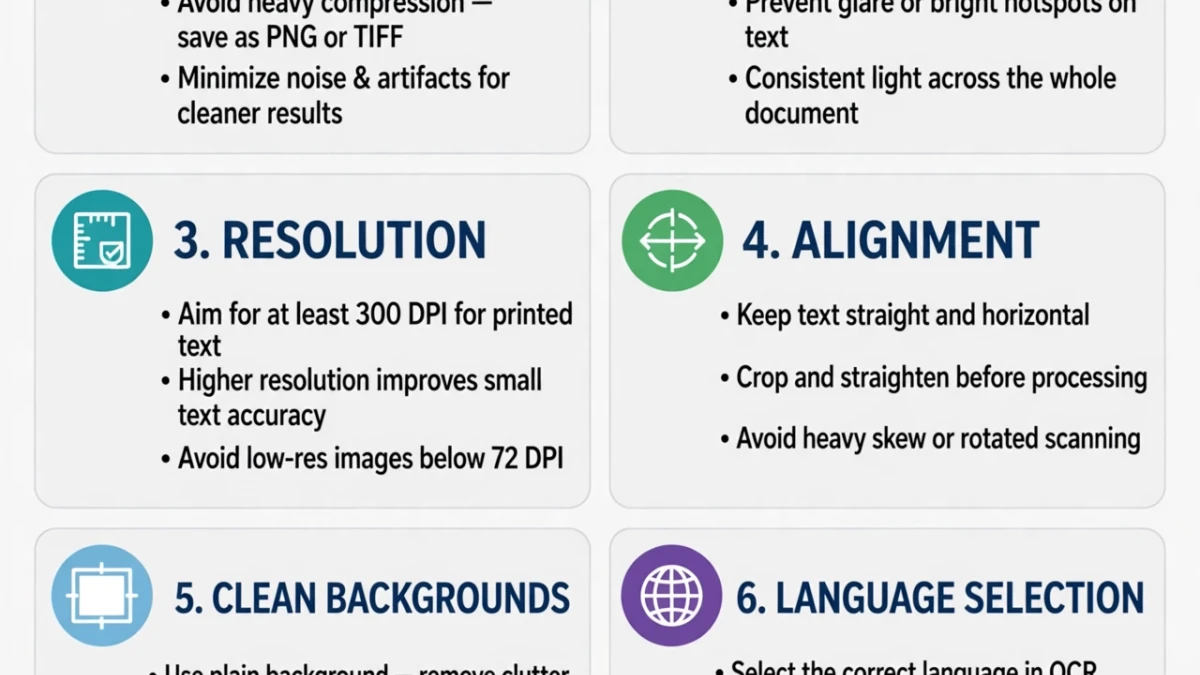
| Scan resolution (DPI) | Very high — 300+ DPI required for reliable results |
| Image sharpness | Very high — blurry text causes errors |
| Font size | High — fonts below 8pt are challenging |
| Font type | Moderate — serif and sans-serif work well; decorative fonts are difficult |
| Document cleanliness | High — coffee stains, folds, pencil marks cause errors |
| Language selection | High — selecting the wrong language model reduces accuracy |
| Text color contrast | Moderate — black on white is optimal |
Using OCR on ToolDolfen
- Open the ToolDolfen Image to Text OCR tool.
- Upload your scanned document or photo of text.
- Select the text language (English is default; additional languages available).
- Click Extract Text.
- Review the output and correct any recognition errors.
- Copy the extracted text to your clipboard.
Best practices for high accuracy:
- Scan at 300 DPI minimum
- Ensure good lighting if photographing a document (avoid shadows and glare)
- Flatten books and documents to eliminate page curvature
- Select the correct language for the document
Recommended Companion Guides
Explore complementary tutorials and utilities from this topic cluster to enhance your digital workflow: